
IntelliJ IDEA supports new Java versions from day one. Several features were added to make working with Java 25 language features in IntelliJ IDEA easier.
New project
Create a new project in IntelliJ IDEA.
You can use the New Project Wizard to create a new project in IntelliJ IDEA. If you select the option to Add sample code, IntelliJ IDEA will add sample code to your project, containing a class with a main method.
If you select IntelliJ as your Build system, set JDK to 25, the sample code will be a compact source file and instance main method, introduced in Java 25.
Compact source file
Create a compact source file in IntelliJ IDEA.
Compact source files were introduced in Java 25. To create a compact source file, right-click the Project tool window (or press ⌘N (macOS) / Alt+Ins (Windows/Linux)) and select New | Java Class. In the New Java Class popup, select the option Compact source file.
This compact source file is created in the root directory of your project, even if you create it from another package. IntelliJ IDEA automatically adds an instance main method void main() to the file.
Java Compact File
Create a compact source file in IntelliJ IDEA.
To create a Java Compact File, introduced in Java 25, right-click the src/main/java directory in the Project tool window and select New | Java Compact File. IntelliJ IDEA will provide a default name for the file, so your thought process is not disrupted when you want to quickly try something out. IntelliJ IDEA automatically adds an instance main method void main() to the file.
Convert compact source file to class
Convert a compact source file to a class in IntelliJ IDEA.
Java 25 introduced the concept of implicit classes or compact source files. We can convert an implicit class to a regular class as needed. Invoke Context Actions by pressing ⌥⏎ (macOS) / Alt+Enter (Windows/Linux) and select Convert an implicitly declared class of a compact source file into a regular class.
The reverse is also possible, should you prefer to use an implicit class at any point. To do so, use the quick-fix Convert into compact source file.
New live templates for main methods
Create an instance main method using a live template.
IntelliJ IDEA has some new live templates to add a main method to an implicit class, either with or without arguments: main, maina, psvm, psvma. Using the live templates psvm or main inside a compact source file will add the new main method, while they will continue to add the classic main method inside a class, as you can see in the preview.
Add arguments
Add args to your main method.
The new void main() method, introduced in Java 25, does not need String[] args. However, should you decide to use the args in your code, IntelliJ IDEA will help you by also adding them to the main method. Type args and press ⏎ (macOS) / Enter (Windows/Linux) to select args from code completion.
Live templates for simple IO
Add simple IO methods using live templates.
Java 25 introduces simple IO methods, such as IO.println() and readln() to make interacting with the console more convenient. IntelliJ IDEA introduces two new live templates to use these methods: iop for println() and ior for readln().
In addition, there are quick-fixes available to convert IO.println() to System.out.println(), and vice versa. Invoke Context Actions ⌥⏎ (macOS) / Alt+Enter (Windows/Linux) on the method and select the option Replace with System.out.println() or Replace with IO.println().
Add static import for simple IO
Add a static import for simple IO methods.
Java 25 introduces simple IO methods, such as IO.println() and readln() to make interacting with the console more convenient. To use these methods in a compact source file, you don’t need to add an import. However, you can add a static import the java.lang.IO class if you prefer. Invoke Context Actions ⌥⏎ (macOS) / Alt+Enter (Windows/Linux) on the method and select the option Add on-demand static import for java.lang.io.
Module Import
Using module import in IntelliJ IDEA.
Java 25 introduces module imports. When adding a module import, use Jump Down to see the contents of the module. When using Optimized Imports, IntelliJ IDEA will automatically remove any imports that are added by the module import. If you prefer to use single class imports, invoke Context Actions ⌥⏎ (macOS) / Alt+Enter (Windows/Linux) and select Replace with single class imports.
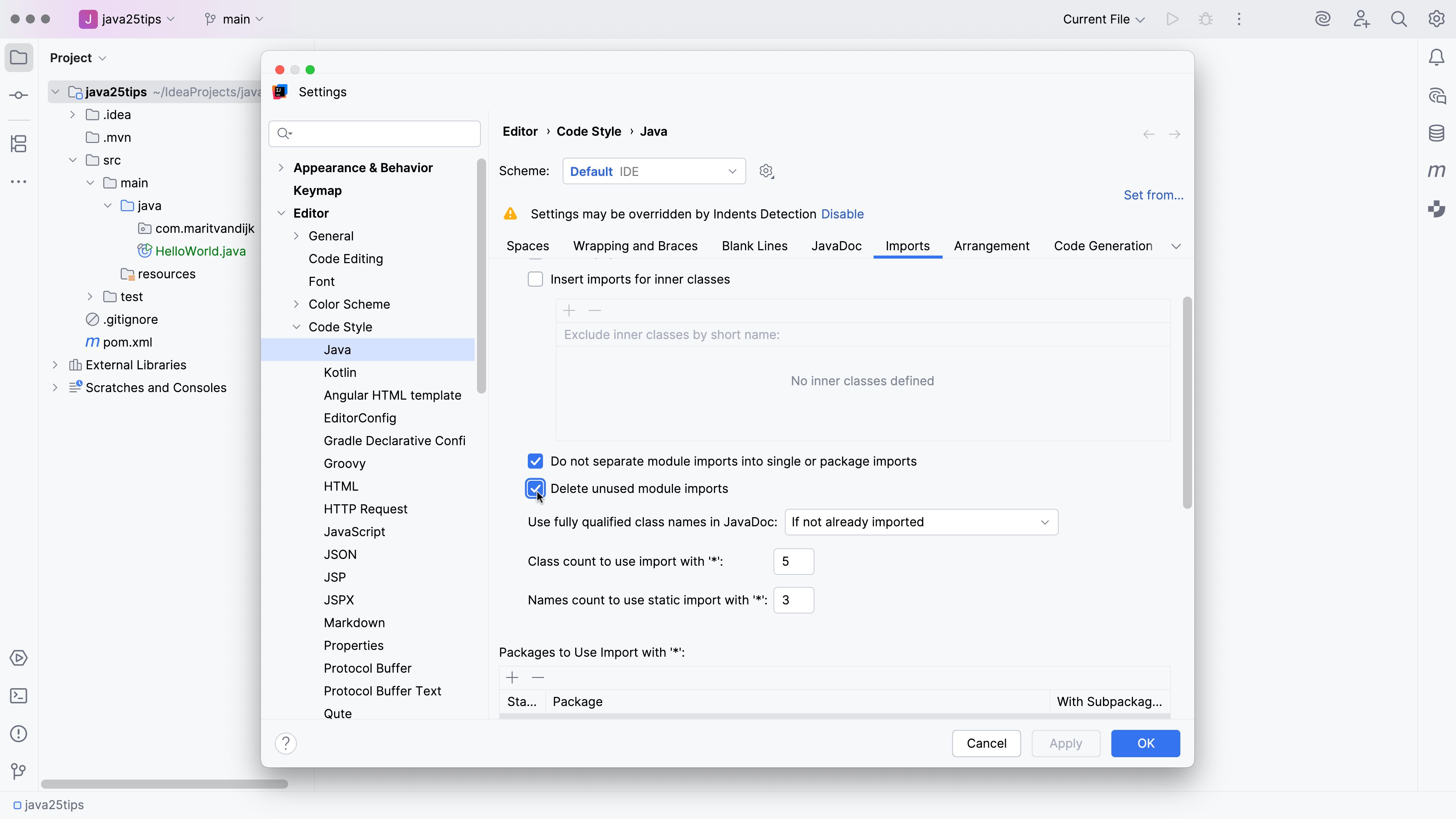
If desired, it is possible to delete unused module imports when using Optimized Imports. To configure this option, open Settings | Editor | Code Style | Java and go to the Imports tab. Select the option Delete unused module imports. When this option is selected, Optimized Imports will remove unused module imports.
Conclusion
Support for Java language features in IntelliJ IDEA makes it easy to adopt and work with new Java language versions.